Root user, IAM and billing alerts: the first hour in a new AWS account
A short, ordered checklist for the first hour in any AWS account. It takes about twenty minutes and prevents the two failures that cost the most.
Two failures account for most bad first months on AWS: an exposed credential that lets somebody else spend your money, and a resource nobody noticed running. Both are cheap to prevent and expensive to discover late. This new AWS account checklist covers the first hour, in the order that matters.
This is the order we work through on any new account. It takes about twenty minutes.
1. Secure the root user
The root user owns the account and cannot be restricted by policy. Treat it as a break glass credential.
- Set a long, unique password stored in a password manager.
- Enable multi factor authentication. A hardware key is ideal; an authenticator app is the practical minimum.
- Delete any root access keys. A root access key is a permanent, unrestricted credential and should not exist.
- Confirm the contact email is one you control and monitor, and set the alternate contacts for billing, operations and security.
If you have taken over an existing account, rotate the root password and re register MFA before doing anything else.
2. Create the identity you will actually use
Log in as root once to set up day to day access, then stop using it.
For a single operator, an IAM user with an administrative policy and MFA is sufficient. For anything with more than one person, IAM Identity Center is the better route: it gives each person their own sign in, supports permission sets, and issues short lived credentials to the CLI.
Inside the account, prefer roles over keys. An EC2 instance profile, a Lambda execution role or an ECS task role supplies temporary credentials that rotate automatically and cannot be copied into a repository by accident.
3. Turn on the money alarms
AWS will not stop you spending. It will tell you, if you ask it to.
- Create an AWS Budgets alert at a threshold you would notice. Two budgets are free.
- Enable Cost Explorer. It needs up to 24 hours to populate, so switch it on before you need it.
- Activate cost allocation tags and apply a consistent tag to everything you create. Without this, a shared account becomes one unexplained number.
- If more than one person can create resources, add a second budget at a higher threshold with a different recipient.
4. Set the region and check the quotas
Pick the region you will actually deploy to and set it as the default in the console and your CLI profile. Resources created in the wrong region are easy to forget and keep billing quietly.
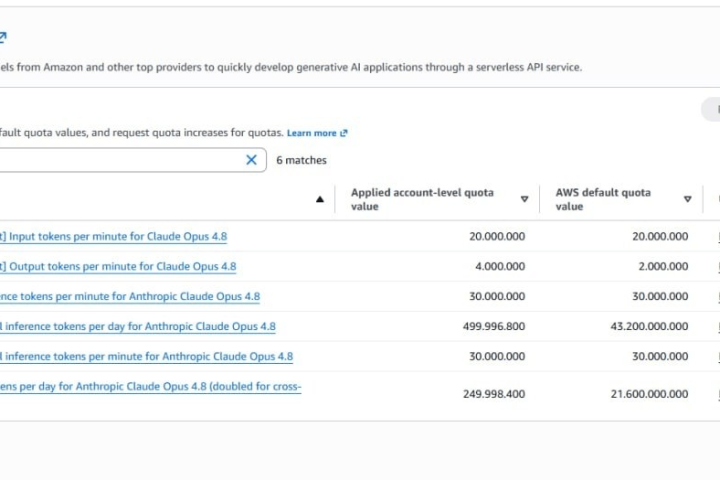
Then open Service Quotas in that region and note the on demand vCPU limit, the Elastic IP limit and anything else your architecture depends on. Requesting an increase now costs nothing; requesting one during a deployment window costs a deployment window. The detail is in AWS vCPU quotas explained.
5. Switch on the audit trail
CloudTrail records API activity and is the only way to answer “who did this” after the fact. A trail delivering to an S3 bucket with a sensible lifecycle policy is inexpensive and worth having from day one.
Two more, if the account will hold anything real:
- Turn on GuardDuty. It is a managed threat detection service that needs no configuration and flags the obvious problems.
- Block public access at the S3 account level unless you have a specific reason not to.
6. Write down what the account is for
This sounds trivial and is not. An account with a stated purpose, an owner and a budget stays tidy. An account without one accumulates half finished experiments until somebody has to audit it.
If you inherited the account
The order changes slightly. Rotate the root credential and MFA first, then review IAM users, access keys and roles for anything you do not recognise, check CloudTrail for recent activity, and look at running resources in every region rather than just the one you expect. Only then move on to the budget and quota work.
The same principles apply to every provider in our catalogue, and the platform neutral version is in securing a cloud account. If you are still choosing between accounts, AWS account types explained covers what actually differs between them.
Common questions
Should I ever use the root user?
Only for the handful of tasks that require it, such as closing the account, changing the support plan or changing the payment method. Everything else belongs to an IAM identity.
Are IAM access keys still recommended?
For anything running inside AWS, no. Use IAM roles, which supply temporary credentials automatically. Long lived access keys are for external systems that cannot assume a role, and they should be rotated.
How do I stop an AWS account spending money?
There is no hard spending cap. Budget alerts notify you, but stopping spend requires action, such as an automated response that shuts resources down when a threshold is crossed.

AccountMarket Editorial
Written and maintained by the team behind accountmarket.org. We publish practical notes on the cloud platforms we work with every day, and we update articles when the platforms or our catalogue change.
Accounts covered in this article
Live options and pricing from the catalogue.
Buy Amazon AWS Account
Amazon Web Services accounts with preloaded credits and root access, including Bedrock ready options across twenty plan tiers.
From $20.00
Keep reading

AWS
AWS account types explained: free tier, pay as you go and credit backed accounts
An AWS account is a billing and isolation boundary, not just a login. Here is what actually differs between a fresh account, an aged one and a credit backed one, and how to pick.

Cloud Comparisons
AWS vs Azure: how to actually choose between them
For most organisations this is not a technical decision. Here is what genuinely differs, what does not, and the three questions that usually settle it.

Cloud Comparisons
AWS vs Google Cloud: catalogue depth against a cleaner pricing model
These two differ more than AWS and Azure do. The billing model, the networking design and the data tooling all point in different directions.